Corsair XENEON EDGE · iCUE widget companion
The DarktableEdge widget puts darktable's film strip, the image you are editing, oversized touch sliders and darktable's own action keys on the XENEON EDGE. A widget package can only carry web files, so the part that talks to darktable is this program. It runs on your own PC and answers the widget over a loopback address. No internet, no account, no telemetry.
Version 0.1.0 · Windows 10 or newer · free
SHA-256 18e03a21efd5587a8b6dc3a943b88f59a6dc068acdc0c80c78ccde65116caa9f · 87,434,240 bytes · all releases
This page covers the companion. The DarktableEdge widget itself is installed in iCUE (Home, then XENEON EDGE, then Widgets). It is not on the Elgato Marketplace yet. Give it a page of its own at Extra Large: the strip, the sliders and the keys want the whole panel. It works with darktable 5.6 on Windows, in any interface language.
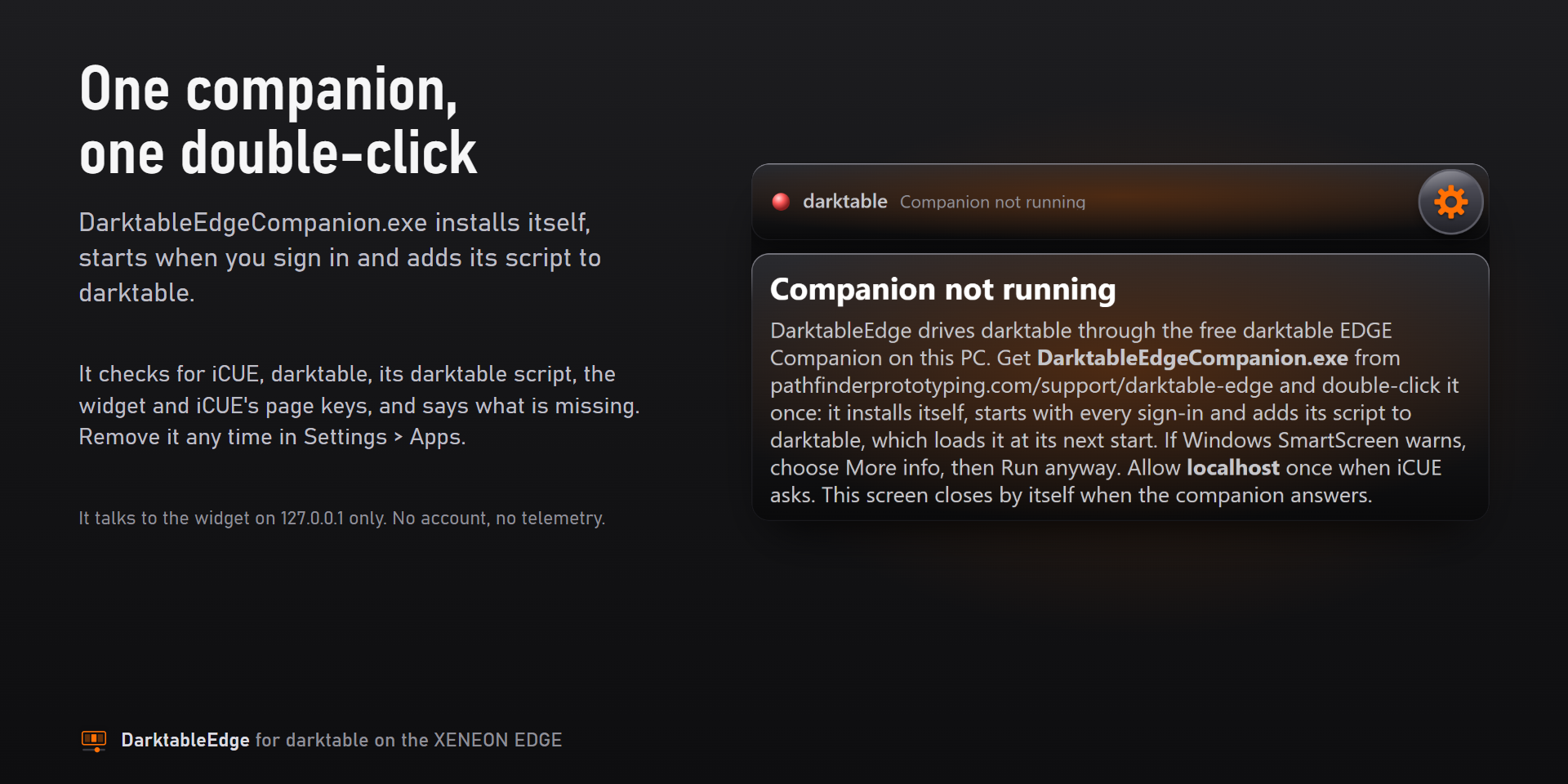
In iCUE choose Home, then the XENEON EDGE, then Widgets, and drop DarktableEdge on a page of its own at Extra Large. Until the companion answers, the panel shows a setup screen that points here.
That double-click is the whole install. DarktableEdgeCompanion.exe copies itself into your local app folder, registers a task that starts it with every sign-in, lists itself under Settings, then Apps, and starts. It puts its small darktable script in place, then checks its own list (iCUE, darktable, the script, the widget, the two XENEON EDGE page keys) and shows you what, if anything, is still missing.
The program is not code-signed yet, so Windows SmartScreen may show "Windows protected your PC" on that first run. Choose More info, then Run anyway. Compare the SHA-256 above if you want to be sure of the file. If darktable is open, close it and start it once more so it loads the companion's script.
The first time the widget reaches the companion, iCUE shows a permission request for a localhost address. That address is the companion on your own PC. Allow it; iCUE asks only once. The setup screen closes by itself and the panel follows whatever darktable shows.
iCUE turns the XENEON EDGE's pages with two keystrokes you record once in iCUE: hover the XENEON EDGE, open Screen Setup, set Previous Display Screen to Ctrl+Alt+Shift+PageUp and Next Display Screen to Ctrl+Alt+Shift+PageDown. The companion reads what you recorded, so other keys work too.
With those recorded, the chevrons in the widget's header turn the pages, and the companion brings the DarktableEdge page up whenever darktable comes to the front while the XENEON EDGE shows another page. The keys fire only while darktable is the active window, so a chevron tap from another app brings darktable forward first.
edge-bridge\bridge.lua) and one marked block in darktable's luarc that loads it. darktable runs the script; nothing else in darktable is changed.%LOCALAPPDATA%\DarktableEdge). It never writes to your image files.Uninstall.cmd in %LOCALAPPDATA%\Programs\DarktableEdge. That ends the task, removes it, takes its script and its luarc block out of darktable's configuration, and deletes that program folder. Its frames and log stay in %LOCALAPPDATA%\DarktableEdge; delete that folder to remove them.localhost:47630 and choose Allow.%LOCALAPPDATA%\DarktableEdge\logs\helper.log. Attach it when you write.Still stuck? Email [email protected] with the widget version from iCUE and the companion version from Settings, then Apps.
